
Apple Find My iPhone: A Comprehensive Guide to Locating Your Device
Apple Find My iPhone: A Comprehensive Guide to Locating Your Device
Apple's Find My iPhone is a powerful tool for tracking lost or stolen devices. It allows users to locate their iPhones, play sounds to help find them, and even remotely lock or erase the device to protect personal information. This feature not only offers peace of mind for Apple users but also provides essential options to maintain security in case of loss.

In today’s world, losing a smartphone can be stressful and disruptive. The Find My iPhone feature integrates with Apple’s ecosystem, making it straightforward for users to utilize its capabilities. From tracking current locations to viewing a history of where the device has been, this tool enhances user control over their personal devices.
Understanding how Find My iPhone works can significantly improve device recovery chances. By familiarizing oneself with its features, users can act swiftly if their device goes missing. This article will explore the functionality, setup process, and tips for maximizing the use of Find My iPhone.
Overview of Find My iPhone
Find My iPhone is an essential tool for Apple users, allowing them to locate their devices with ease. It combines several features designed to protect and recover lost or misplaced iPhones, ensuring security and convenience for users.
What Is Find My iPhone?
Find My iPhone is a feature within Apple's iCloud platform that enables users to track their Apple devices. It works by using GPS satellite technology and Wi-Fi networks to pinpoint the location of lost devices.
This feature is not limited to just iPhones; it also works with iPads, Macs, Apple Watches, and AirPods. Users can access Find My iPhone through the iCloud website or the Find My app on another Apple device.
When a device is located, the user can see its current location on a map, ensuring they can easily retrieve it.
Key Features of Find My iPhone
Find My iPhone offers several important functionalities, making it a valuable resource. Key features include:
-
Location Tracking: Users can view the precise location of their device on a map. This is particularly useful for quickly finding a lost phone in familiar areas.
-
Remote Locking: If a device is stolen, users can remotely lock it to prevent unauthorized access. This feature enhances security significantly.
-
Play Sound: If the device is nearby but misplaced, users can trigger a sound to help locate it.
-
Lost Mode: Users can enable Lost Mode, which locks the device and displays a custom message on the screen, making it easier for someone to return it.
-
Erase Data: If recovery seems unlikely, users can remotely erase all data on the device to protect personal information.
These features work together to create a powerful tool for maintaining security and enabling recovery.
System Requirements for Find My iPhone
To use Find My iPhone, several system requirements must be met. These include:
-
Compatible Devices: Find My iPhone is available on devices running iOS 5 or later. It also supports macOS and iPadOS devices.
-
iCloud Account: Users must have an active Apple ID with iCloud enabled on their devices.
-
Location Services: The device's Location Services must be turned on to allow tracking.
-
Internet Connection: The device needs to be connected to the internet via Wi-Fi or cellular data for effective tracking.
By ensuring these requirements are met, users can maximize the benefits of Find My iPhone and secure their devices effectively.
Setting Up Find My iPhone
To use the Find My iPhone feature, users must first ensure they have an active Apple ID. Next, the feature needs to be enabled on the iPhone, followed by configuring Location Services for optimal performance. Each step is essential for effective tracking and security.
Creating an Apple ID
An Apple ID is crucial for accessing various Apple services, including Find My iPhone. Users can create an Apple ID directly on their device or through the Apple website.
- On iPhone:
- Open Settings.
- Tap Sign in to your iPhone.
- Select Don’t have an Apple ID? and follow the prompts.
- Online:
- Visit the Apple ID website.
- Click Create Your Apple ID and fill out the necessary information.
After creating the Apple ID, users should verify it via email or phone number to ensure security and future accessibility.
Enabling Find My iPhone on Your Device
Once an Apple ID is established, the next step is to enable Find My iPhone. This can be done through the device's settings.
- Navigate to Settings.
- Tap on the user's name at the top.
- Select Find My.
- Tap Find My iPhone and toggle it to On.
This action allows users to track their device's location via iCloud. Users may also want to turn on Send Last Location to have their device share its last known location before the battery dies.
Location Services Configuration
For Find My iPhone to work effectively, Location Services must be enabled.
- Open Settings.
- Scroll down to Privacy & Security and tap on Location Services.
- Ensure that Location Services is turned on.
Next, scroll down to Find My and set it to While Using the App or Always to provide real-time tracking.
Proper configuration of these settings enhances the effectiveness of Find My iPhone, ensuring users have the best chance of locating their device if it goes missing.
Using Find My iPhone
Find My iPhone is an essential tool for locating a lost device and protecting personal data. Users can access various features designed to assist in tracking and managing their iPhones.
Accessing the Find My iPhone App
To use Find My iPhone, the feature must be enabled in the device's settings. Users should go to Settings > [Their Name] > iCloud > Find My iPhone. They need to toggle the feature on and ensure that Send Last Location is also activated.
Once enabled, users can access it via the Find My app on another Apple device or through a web browser at iCloud.com. Logging in with the associated Apple ID allows access to all available options.
Locating Your iPhone
Locating a lost iPhone is straightforward. Users should open the Find My app or access iCloud.com. Upon logging in, they will see a map displaying the location of their device if it is online.
If the iPhone is offline, it will show the last known location. Users can refresh the map to get real-time updates. This is especially useful when the device is nearby but lost within a confined space.
Playing a Sound on Your iPhone
If the iPhone is misplaced nearby, users can play a sound to help locate it. Within the Find My app, after selecting the device, there is an option to Play Sound.
The device emits a loud chime, which is useful when the phone is hidden under cushions or in another room. This feature helps significantly in locating the device quickly and efficiently.
Using Lost Mode
Activating Lost Mode is crucial when an iPhone is believed to be stolen or lost. Users can enable this through the Find My app by selecting the device and choosing Activate Lost Mode.
This locks the iPhone with a passcode and displays a custom message on the screen. It can also track the device’s location, allowing users to receive updates. Enabling Lost Mode ensures that personal data remains secure.
Erasing iPhone Data Remotely
If recovery seems unlikely, users can remotely erase their iPhone data. In the Find My app, selecting Erase iPhone will wipe all personal information from the device.
This action is irreversible, so it should be used with caution. Once the phone data is erased, users will no longer be able to track it. This feature protects sensitive information in the event of loss or theft.
Find My iPhone on the Web
Using Find My iPhone on the web provides users with a reliable method to track and manage their Apple devices. The process is straightforward, with various features available through iCloud.com.
Using iCloud.com for Find My iPhone
To access Find My iPhone via the web, users must visit iCloud.com and sign in with their Apple ID and password. After logging in, they should select the Find iPhone icon.
A map displays the location of all devices linked to the Apple ID. Users can click on the devices to see their status and location. If a device is lost, options like Play Sound, Lost Mode, and Erase iPhone can be activated directly from the interface.
This web-based approach is especially useful for those who might not have access to another Apple device. It provides a quick way to locate lost devices from any computer or compatible smartphone.
Features Available on the Web Interface
The web interface for Find My iPhone includes several essential features that help users manage their devices efficiently.
- Location Tracking: Users can see the real-time location of their devices on a map.
- Play Sound: This option helps locate a device nearby by emitting a sound, even if it is on silent.
- Lost Mode: Activating Lost Mode locks the device and displays a customized message on the screen, enhancing the chances of recovery.
- Remote Erase: If the device is irretrievable, users can erase all data remotely to protect their information.
These features collectively support users in efficiently managing their devices.
Differences Between App and Web Usage
There are distinct differences between using Find My iPhone in the app and on the web.
- Accessibility: The app is optimized for mobile use, providing a streamlined experience. The web version is accessible from any browser, making it handy when users lack their devices.
- User Interface: The app has a more touch-friendly interface, while the web version utilizes dropdowns and menus that may not be as intuitive on touch devices.
- Functionality: Both platforms offer core functionalities, but the app typically updates faster in real-time. The web version can have slight delays depending on internet connection.
Understanding these differences can help users choose the most convenient method for tracking and locating their devices.
Family Sharing and Find My iPhone

Family Sharing allows users to share their Apple services with family members. It enhances the usefulness of Find My iPhone by making it easier to locate devices belonging to family members, while also considering privacy aspects.
Setting Up Family Sharing
To set up Family Sharing, the family organizer must open the Settings app and tap on their Apple ID. From there, they can select "Set Up Family Sharing" and follow the prompts.
The organizer can invite up to five family members by sending them an invitation via iMessage or sharing a link. These members need to accept the invitation using their own Apple IDs. After joining, family members can share purchases, subscriptions, and locate each other’s devices effortlessly.
Locating Family Members' Devices
Once Family Sharing is set up, members can locate each other's devices using the Find My app. Family members can access the "People" tab within the app to see the locations of other devices.
If a family member's device is lost, they can easily mark it as lost, which locks the device and displays a custom message on the screen. Notifications will also be sent when that device is found. This feature ensures that family members can quickly assist each other in locating lost devices, enhancing overall security.
Privacy Considerations
While Family Sharing provides substantial benefits, privacy is crucial. Family members can choose whether or not to share their location.
Every family member must individually enable location sharing in the Find My app settings. This control allows individuals to retain their privacy while still enabling family support in finding lost devices. Additionally, Apple employs strong encryption to protect user data, ensuring that location information is accessible only to family members with permissions.
Security and Privacy
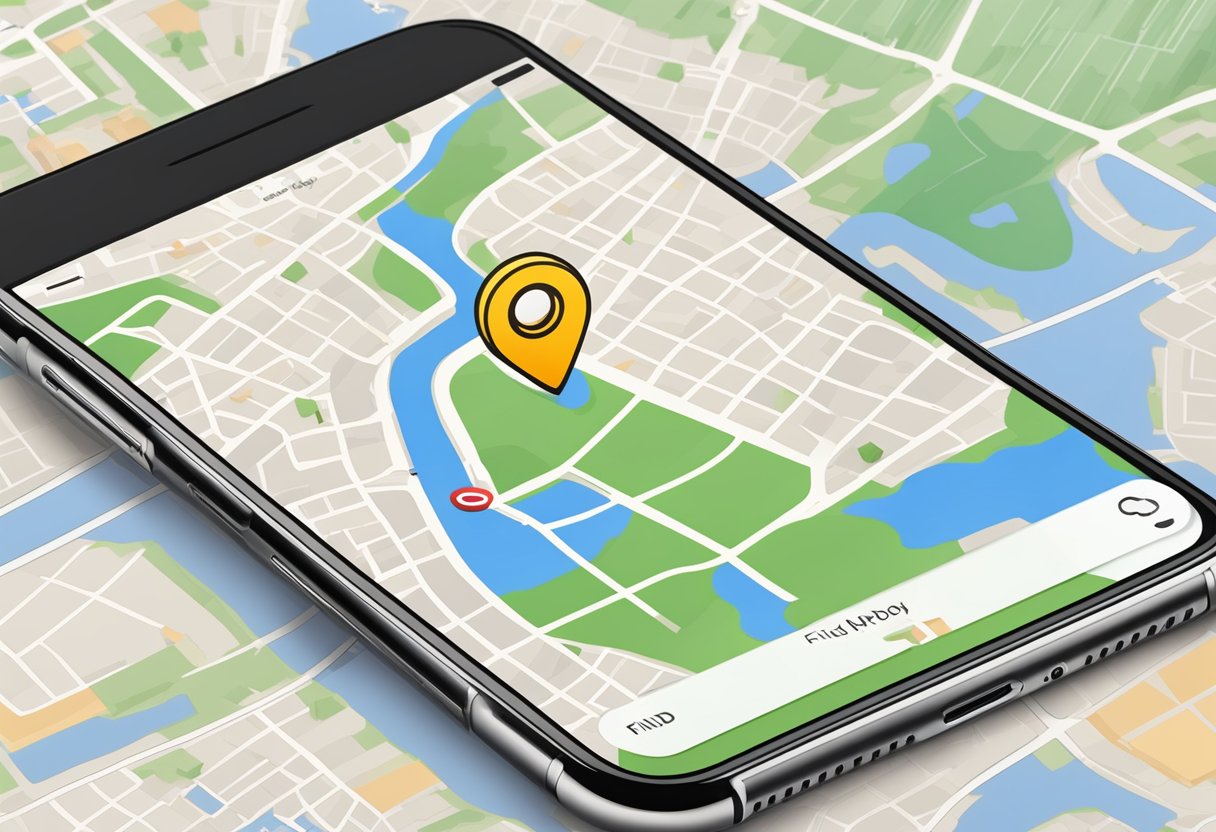
The "Find My iPhone" feature provides users with essential tools to protect their devices. Security is a primary focus, as Apple implements various measures to safeguard user information.
Key Security Features:
- Encryption: Location data is transmitted using end-to-end encryption, ensuring that only the device owner can view their device's location.
- Two-Factor Authentication: This adds an extra layer of security by requiring a second form of verification when accessing Apple ID settings or using "Find My iPhone."
Users can also enable a setting called Lost Mode, which locks the device remotely. This feature displays a custom message, helping someone who finds the device to return it.
Privacy Measures:
- Location Sharing Control: Users have complete control over who can see their device's location. They can choose to share location data with trusted contacts or keep it private.
- Data Retention: Apple does not store history of location data long-term. This minimizes the risk of unauthorized access to location history.
By implementing robust security practices and prioritizing privacy, "Find My iPhone" significantly enhances device protection for users while maintaining trust in Apple’s handling of sensitive information.
Troubleshooting Common Issues

Users may encounter various issues while using Find My iPhone. Addressing these common problems can enhance the overall experience and ensure efficient tracking of devices.
Device Offline or Not Showing
When a device appears offline in Find My iPhone, it typically indicates that the device is turned off, out of battery, or has no internet connection. To resolve this:
- Check the Device: Ensure the device is powered on and has a sufficient battery charge.
- Network Connection: Verify that it is connected to Wi-Fi or a cellular network. Sometimes, toggling Airplane Mode on and off can help re-establish a connection.
- Find My Settings: Check that Find My iPhone is enabled in the settings on the device. Navigate to Settings > [your name] > iCloud > Find My iPhone.
If the device remains offline, the last known location may be visible, but real-time tracking will not function until the device is back online.
Trouble Logging In
Logging into Find My iPhone can sometimes present challenges due to account issues or forgotten passwords. To tackle this:
- Apple ID Confirmation: Users must ensure they are using the correct Apple ID associated with the device. A common error occurs if multiple Apple IDs are in use.
- Reset Password: If the password is forgotten, users should visit the Apple ID account page to reset it. Follow the prompts to recover access.
- Network Check: A weak or unstable internet connection can hinder login attempts. Switching to a stronger Wi-Fi network or using cellular data may help.
If issues persist, clearing the app cache or reinstalling the Find My app can also resolve logging problems.
Issues with Location Accuracy
Accurate location tracking is crucial for effective device recovery. Several factors can influence the accuracy of location services:
- GPS Settings: Ensure that the device has GPS enabled. Users can check this in Settings > Privacy > Location Services.
- Environment: Physical obstructions such as buildings or dense vegetation may impair GPS signals. Open areas typically provide better accuracy.
- Software Updates: Keeping the device updated ensures optimal performance of location services. Users should regularly check for system updates in Settings > General > Software Update.
If location inaccuracies continue, restarting the device or toggling location services off and on may help recalibrate the tracking.