
Find My Apple Watch: Effective Steps to Locate Your Device
Find My Apple Watch: Effective Steps to Locate Your Device
Losing an Apple Watch can be a frustrating experience, but there is a way to quickly locate it. Using the Find My app can help users track down their Apple Watch and ensure its safety. With just a few simple steps, individuals can restore peace of mind and enjoy their devices without the fear of loss.

Setting up the Find My feature is essential for anyone who wants to protect their Apple Watch. Once enabled, it allows users to track their device on a map, play sounds, and even lock it remotely. Whether it’s misplaced at home or lost while out and about, this tool proves invaluable in reducing stress.
Understanding how to effectively use the Find My Apple Watch feature is key to staying connected. By knowing how to access various options within the app, users can quickly locate their watch and take the necessary precautions to prevent future loss.
Key Takeaways
- Find My is essential for tracking down a lost Apple Watch.
- Proper setup of the feature allows access to helpful tools.
- Knowing how to use Find My can prevent future loss of the device.
Overview of 'Find My Apple Watch'

'Find My Apple Watch' is a feature designed to help users locate their Apple Watch when it is lost or misplaced. It offers various tools for tracking the device and ensuring its security.
Compatibility and Requirements
To use 'Find My Apple Watch,' users need a compatible Apple Watch model. This includes Series 1 and later versions. It is essential that the watch is paired with an iPhone that supports iOS 14 or newer.
Users must also have the Find My app installed and activated. This feature requires both Bluetooth and Wi-Fi connections. Additionally, enabling location services is crucial for accurate tracking.
It's important for users to set up their Apple ID, as this connects the watch to their account. If the device is not set up correctly, it may not be possible to track it effectively.
How 'Find My Apple Watch' Works
'Find My Apple Watch' operates through the Find My app. When a watch is lost, users can open the app on their iPhone or another Apple device. From there, they can view the watch's last known location on a map.
If the watch is nearby, users can tap Play Sound. This feature triggers a sound on the watch, making it easier to locate. The sound gradually increases in volume for about two minutes.
If the watch is out of reach, users can activate Lost Mode. This mode locks the device and displays a message on the screen. It also allows users to receive updates on the watch’s location, making it a reliable way to keep track of the device.
Setting Up 'Find My Apple Watch'

Setting up 'Find My Apple Watch' is essential for keeping the device secure and easy to locate if lost. This involves two main steps: enabling 'Find My iPhone' on the paired iPhone and activating the 'Find My Network' on the Apple Watch.
Enabling 'Find My iPhone'
To begin, the user must enable 'Find My iPhone' on their paired iPhone. They should open the Settings app and tap on their name at the top of the screen. From there, they can select Find My and enable the Find My iPhone option.
This feature allows the Apple Watch to be located using the iPhone's capabilities. It is critical not only for tracking but also for security. Users should ensure that the Send Last Location option is activated. This sends the device's last known location to Apple when the battery is low.
Activating 'Find My Network'
Next, the user needs to activate the 'Find My Network' for their Apple Watch. On the Apple Watch, they can access this feature through the Settings app. After tapping their name, they should scroll down and select the watch's name.
Here, they will find the option for Find My Watch. Activating the Find My Network ensures that even if the watch is out of Bluetooth range, it can still be found using other Apple devices nearby. This increases the chances of recovery significantly if the watch goes missing.
Using 'Find My Apple Watch' to Locate Your Device
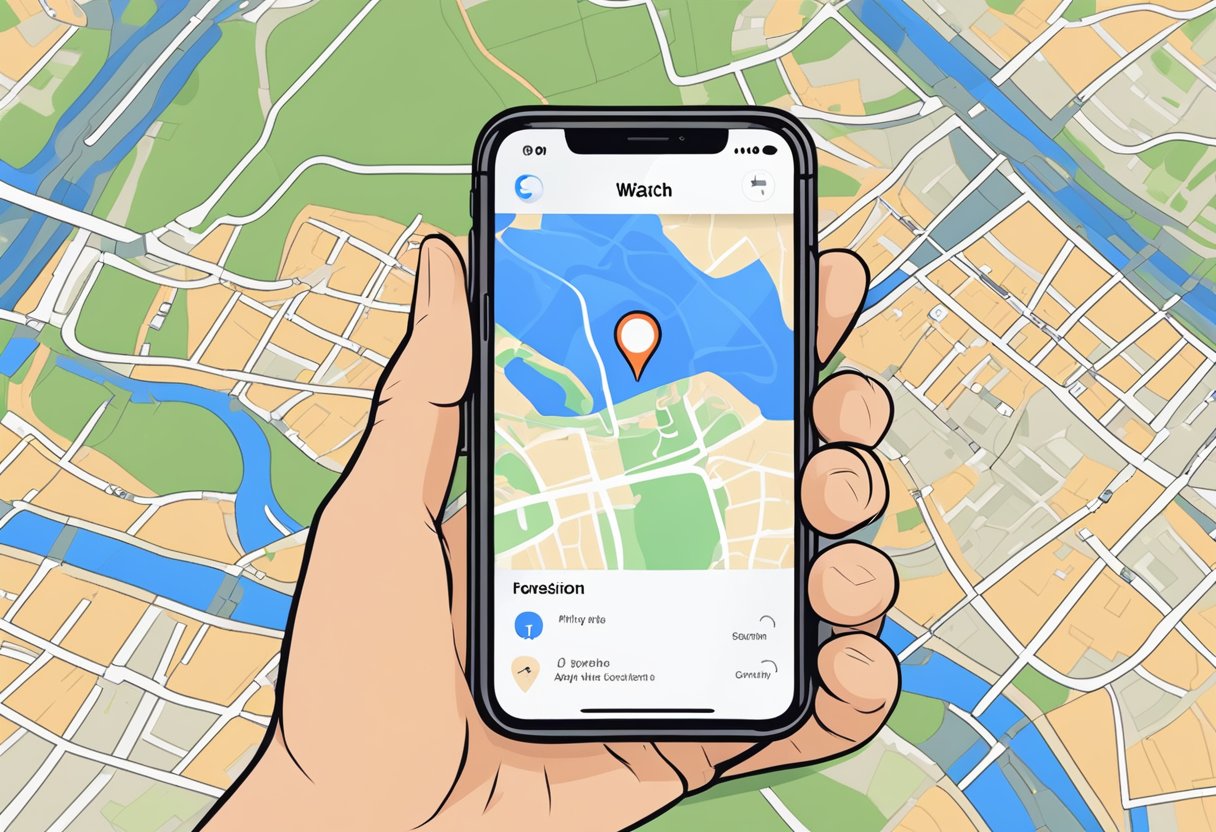
Finding a lost Apple Watch can be simple with the right steps. The 'Find My' app offers several tools to help locate the device quickly, whether it's lost at home or elsewhere. Below are the methods to access the app, play sounds, use maps, and mark the device as lost.
Accessing the 'Find My' App
To use 'Find My' to locate an Apple Watch, users must first access the app on their iPhone or iPad. Open the 'Find My' app from the home screen. After that, tap on the "Devices" tab at the bottom.
Next, a list of all linked devices will appear. Locate the Apple Watch from this list. Once selected, the app shows its current location on a map. This is crucial in ensuring the watch is still within range and helps narrow down the search area effectively.
Playing a Sound on Your Apple Watch
If the Apple Watch is nearby but hard to find, users can play a sound through the watch. After selecting the Apple Watch in the 'Find My' app, tap on the option to "Play Sound." The watch emits a loud chime, making it easier to locate.
This sound plays for about two minutes and increases in volume. If the watch has a haptic feature, it will vibrate as well. This method is particularly useful if the watch is misplaced under furniture or in a different room.
Using Maps to Find Your Watch
The 'Find My' app provides a map view that shows the last known location of the watch. When selecting the watch, the map displays a pin indicating where it was last connected to the iPhone.
Users can zoom in and out of the map to get a clear view of the surrounding area. This feature helps to guide users to the precise location of their watch. If the watch is out of range, the map can give an approximate location if it is connected to Wi-Fi or a cellular network.
Marking as Lost and Locking Your Watch
If the Apple Watch cannot be located, users can mark it as lost. In the 'Find My' app, tap the option to "Mark As Lost." This feature locks the watch, preventing unauthorized access.
Moreover, users can enter a phone number and a custom message that will display on the watch's screen. This way, someone who finds the watch can contact the owner directly. The owner will receive email confirmation that the watch is in Lost Mode, enhancing its security.
Troubleshooting Common Issues
When using the "Find My" app to locate an Apple Watch, various issues may arise. Understanding how to address these problems can help track down the missing device quickly and effectively.
Apple Watch Not Showing in 'Find My'
If the Apple Watch does not appear in the "Find My" app, the first step is to verify that it is paired with an iPhone. It must be linked correctly to show up in the app. To check this, open the Watch app on the iPhone.
If it’s paired, ensure that "Find My" is enabled on both devices. Navigate to Settings > [Your Name] > Find My. Ensure that "Find My iPhone" and "Find My network" are turned on.
Restarting both devices may help. Hold the side button on the watch for a restart, and perform a soft reset on the iPhone if needed.
Location Services Not Available
Location Services is crucial for "Find My" to function. If this feature is turned off, the Apple Watch may not be trackable. To check, go to Settings > Privacy > Location Services on the iPhone.
Make sure that Location Services are enabled. Also, verify that "Find My" has permission to use location data. If it’s set to "Never," change it to "While Using the App" or "Always."
Sometimes, a software update is necessary. Check for updates by going to Settings > General > Software Update. Installing the latest version may fix any issues with Location Services.
Apple Watch Offline or Power Off
If the Apple Watch is offline or powered off, it cannot be located. The "Find My" app will show its last known location if it’s unavailable. To check the battery level, ensure the watch is properly charged.
For a watch that won't turn on, hold the side button to restart it. If it still does not respond, check the charging cable and make sure it’s functioning. Place the watch on the charger for at least 30 minutes.
Sometimes, the watch may be out of Bluetooth range from the iPhone. Moving closer can re-establish the connection, allowing location updates.
Preventive Measures for Future Safety

Taking precautions can significantly reduce the chances of losing an Apple Watch. By implementing strategies to keep the device secure and functional, users can enjoy more peace of mind.
Regularly Backing up Your Apple Watch
It's crucial to regularly back up an Apple Watch to avoid losing important data. The watch itself backs up automatically when paired with an iPhone, but users must make sure their iPhone is also backed up regularly.
To manage backups, users can go to the Apple Watch app on their iPhone. From there, select General and then Backup to check the last backup date. Regular backups will store health data, app data, and settings, allowing for easy restoration if the device is lost or reset.
Having a recent backup enables a user to restore their watch data easily on a new device. This measure ensures that valuable information remains secure.
Maintaining Battery Life to Stay Connected
Maintaining good battery life on an Apple Watch is essential for staying connected, especially in emergencies. Users should adopt several practices to prolong battery life.
One effective tactic is to regularly check the Battery usage information in the settings to identify which apps consume the most power. Users can adjust settings to limit notifications or background app refresh for less essential apps.
Additionally, keeping the watch updated will optimize battery performance. Using Power Saving Mode during workouts can help extend battery life as well.
Finally, ensuring that the watch remains charged will keep features like Find My operational, making it easier to locate the device if lost.
Privacy Concerns With 'Find My Apple Watch'

Using the Find My Apple Watch feature raises several privacy concerns. Users should be aware of how their data is handled and protected.
Data Collection: The app collects location data to track the Apple Watch. This information can be sensitive and may worry some users.
Unauthorized Access: If someone gains access to a linked Apple ID, they can track the watch without permission. Keeping account information secure is crucial.
Activation Lock: This feature helps protect the device, but it requires users to disable it for repairs. Failing to do this can expose private data.
Notifications: Users may receive notifications about their watch's location. These alerts might unintentionally reveal sensitive information if received by the wrong person.
Sharing Information: If using Find My with family or friends, shared location data can be problematic. Users should communicate clearly about privacy and data sharing.
To enhance security, users should:
- Enable Activation Lock.
- Use a strong password for their Apple ID.
- Regularly review sharing settings.
Understanding these concerns aids users in making informed choices regarding their privacy while using Find My Apple Watch. Being proactive in managing account settings can help mitigate risks related to location tracking and data security.
Alternative Methods to Secure Your Apple Watch

To keep an Apple Watch secure, users can employ several methods. These techniques help protect the device from unauthorized access and loss.
1. Enable Two-Factor Authentication
Setting up two-factor authentication for an Apple ID adds another security layer. This makes it harder for someone to access the account tied to the Apple Watch.
2. Use Passcode Lock
A passcode lock is essential for protecting the watch. It requires a code to unlock, preventing unauthorized use even if someone has physical access to it.
3. Activate Find My Watch
Turning on the Find My feature is crucial. This enables the user to locate the watch if it goes missing. It also activates the Activation Lock, which prevents others from using it without the owner’s Apple ID and password.
4. Regular Software Updates
Keeping the watch's software up-to-date helps maintain security. Updates often include patches for known vulnerabilities. Users should check for updates regularly to ensure their device is secure.
5. Be Cautious with Apps
Only download apps from trusted sources. Using unauthorized or suspicious apps can expose the watch to security risks. Users should monitor what apps are installed and remove any that seem questionable.
These methods can significantly enhance the security of an Apple Watch, ensuring it remains protected from theft or unauthorized access.
Tips for Keeping Your Apple Watch Safe
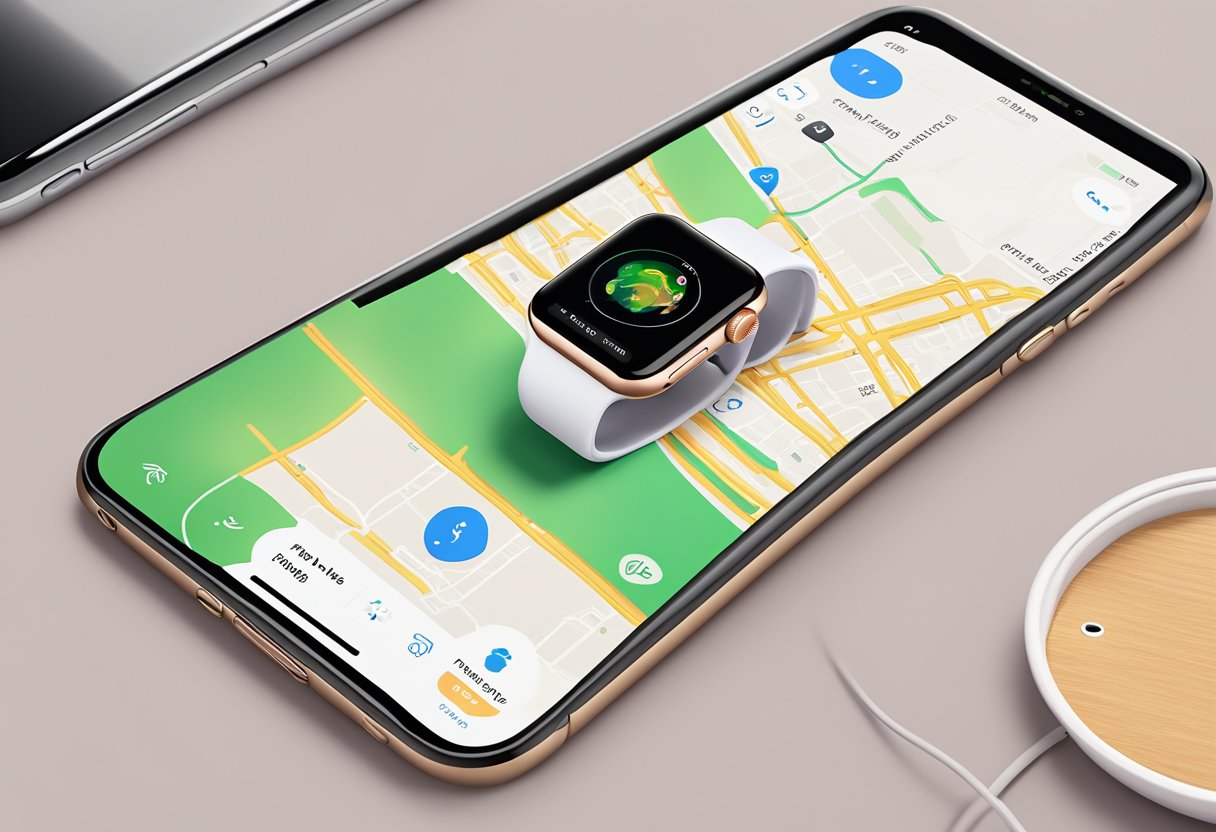
Keeping an Apple Watch safe is important for its longevity and functionality. Here are some helpful tips:
-
Use a Secure Passcode: Set up a passcode to protect personal information. This feature locks the watch when it’s removed from the wrist.
-
Be Mindful of Location: Always keep the watch in a safe place. Avoid leaving it in public areas or unsecured locations.
-
Enable Find My: Turn on the Find My feature. This tool helps locate the watch if it gets lost or stolen.
-
Use a Protective Case: Consider a protective case to shield the watch from damage. This can prevent scratches and other wear and tear.
-
Avoid Excessive Moisture: While many Apple Watches are water-resistant, limit exposure to water. This helps ensure the device remains functional.
-
Regularly Update Software: Keep the watch's software up to date. This ensures it has the latest security features and improvements.
-
Be Cautious During Activities: Protect the watch during sports or active moments. Using a sports band can minimize the risk of it falling or getting damaged.
By following these tips, users can enhance the safety of their Apple Watch and reduce the chances of loss or damage.
Conclusion

Finding an Apple Watch can be simple with the right tools and steps. Utilizing the Find My app is essential for this process.
-
Setup: Users must first ensure that Find My is enabled on their devices. This step is crucial for tracking functions to work properly.
-
Using Find My: The watch can be located using GPS and cellular data or Wi-Fi connections. Apple Watch models that include GPS + Cellular have a clear advantage in tracking.
-
Lost Mode: If the watch is lost, users can activate Lost Mode. This option allows them to display a message on the watch and receive notifications about its location.
-
Sound Alerts: For locating the device within a close range, users can play a sound through the watch. This feature is helpful if the watch is nearby but not immediately visible.
-
Dealing with a Dead Battery: Even if the battery is dead, Find My can show the last known location. This function updates every 24 hours, which can aid in recovery efforts.
Understanding these features can help individuals quickly locate their Apple Watches and minimize stress during this process.