
Find My iPhone: A Step-by-Step Guide to Locating Your Device
Find My iPhone: A Step-by-Step Guide to Locating Your Device
Losing an iPhone can be stressful, but there is a way to help locate it quickly. Find My iPhone is a powerful tool that allows users to track their device's location, activate sounds, and even lock it remotely. This feature is part of Apple's Find My service, which also supports other devices and personal items.
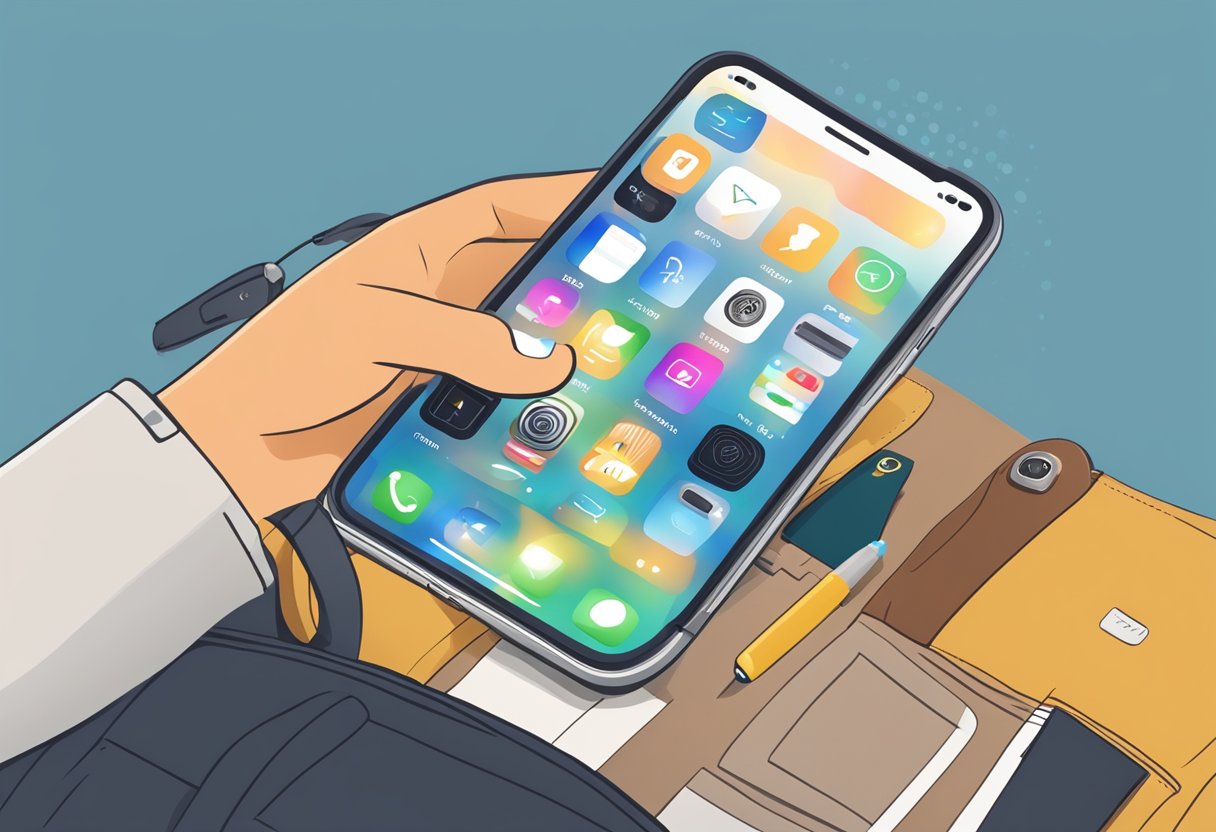
Setting up Find My iPhone is simple but essential for ensuring its effectiveness. With it, users can easily see where their device is on a map and take swift action if it gets lost or stolen. By knowing how to utilize this tool, anyone can protect their device and personal information.
Understanding the features and best practices can greatly enhance the user experience. Whether troubleshooting an issue or optimizing usage, being informed helps keep devices safe.
Key Takeaways
- Find My iPhone enables users to track lost devices easily.
- Setting it up requires a few simple steps to be fully effective.
- Familiarity with troubleshooting can solve common issues quickly.
Overview of Find My iPhone
Find My iPhone is a powerful tool that helps users locate their Apple devices. It has evolved over time, adding features that enhance user experience and security. The following subsections provide detailed information about what Find My iPhone is, its evolution, and its key features.
What Is Find My iPhone?
Find My iPhone is a built-in app on Apple devices that assists users in locating lost or stolen devices. When a device is enabled with this feature, it can be tracked using GPS, Wi-Fi, or cellular data. Users can access the service through the Find My app or iCloud.com.
Once activated, it shows the device's location on a map. If the device is nearby, users can make it play a sound to help locate it. The service also offers additional options like marking a device as lost, which locks it and displays a custom message on the screen.
Evolution of the Service
Find My iPhone has seen significant developments since its launch in 2010. It started as a standalone app but was integrated into the Find My service, combining it with Find My Friends. This change allowed users to locate both their devices and share locations with friends and family.
Over the years, Apple introduced new features like Activation Lock, which prevents unauthorized access. The introduction of AirTags in 2021 further expanded the service, enabling users to track items like keys and bags using the same platform.
With each update, Apple has focused on improving the user interface and enhancing location accuracy. These upgrades ensure users have a reliable tool for finding lost devices.
Key Features
Find My iPhone offers several important features that make it user-friendly. Some of the key elements include:
-
Location Tracking: Users can see the exact location of their devices on a map.
-
Play Sound: A sound can be played on the device to help find it if it is nearby.
-
Lost Mode: This feature locks the device and displays a custom message for anyone who finds it.
-
Remote Erase: Users can erase all data on the device to protect their information.
In addition to these features, Find My iPhone maintains user privacy. The location information is encrypted, ensuring that only the owner can track their device.
Setting Up Find My iPhone
Setting up Find My iPhone is essential for tracking and securing Apple devices. It helps users locate their devices if lost or stolen. Below are the critical aspects of compatibility, the activation process, and privacy considerations.
Compatibility and Requirements
To use Find My iPhone, certain compatibility and requirements must be met. It works on iPhone models starting from iPhone 5 and later. Additionally, it is available on iPad, iPod touch, Mac, and Apple Watch.
Requirements include:
- An Apple ID
- iOS version 5 or later
- Internet connection (Wi-Fi or cellular)
Make sure that the device has location services enabled for maximum effectiveness. It's also important to keep the device updated to ensure all features work properly.
Step-by-Step Activation Process
Activating Find My iPhone involves several straightforward steps:
- Open Settings: Tap on the "Settings" app on your device.
- Tap on Your Name: This is usually found at the top of the menu.
- Select iCloud: Scroll down to find and tap on "iCloud."
- Find My iPhone: Locate "Find My iPhone" in the list of apps.
- Turn It On: Toggle the switch to enable Find My iPhone.
To ensure the feature works effectively, enable "Send Last Location." This automatically sends the device's location to Apple when the battery is critically low.
Privacy and Security Considerations
Privacy and security are paramount when using Find My iPhone. The feature uses end-to-end encryption to protect user data. This means that only the user can access the information about their device.
Important points include:
- Location sharing can be turned off at any time.
- Users should ensure their Apple ID is secure, using strong passwords and two-factor authentication.
- If a device is marked as lost, it enters Lost Mode, restricting access to sensitive information.
These measures help safeguard personal data while allowing the device owner to track their device effectively.
Using Find My iPhone
Find My iPhone is an essential tool for locating a lost or stolen device. This feature allows users to access various options to track their devices, play sounds to help find them, activate Lost Mode, and even erase their iPhones for security.
Accessing the Service
To access Find My iPhone, users need to ensure their device is set up correctly. They can navigate to the Settings app, tap their name at the top, and select Find My. Ensure that both Find My iPhone and Find My network are turned on. Users can also access this service through the iCloud website on a computer. They simply sign in with their Apple ID. It’s important for users to enable Location Services for better tracking.
Locating Your Device
Once Find My iPhone is enabled, locating a device is straightforward. Users can visit the Find My app on any Apple device or iCloud website. After signing in, they will see a map displaying the locations of their devices. If the device is online, it will show its current location. If it’s offline, the app will display the last known location. By selecting the device’s name, users can get directions to where it is located.
Playing a Sound
If a device is nearby but users cannot find it, the Play Sound feature comes in handy. After selecting the device in the Find My app, users can click the Play Sound option. This will make the iPhone emit a loud sound, even if it is on silent mode. The sound lasts for a few minutes, helping users identify where the device is hidden. This feature is especially useful in crowded areas where it can be easy to misplace a device.
Lost Mode
Activating Lost Mode provides an additional layer of security for a misplaced or stolen device. By selecting this option in the Find My app, users can lock their device remotely. This requires anyone who finds the phone to enter the passcode to access it. Users can also leave a contact number or message on the lock screen. This way, if someone finds the iPhone, they can contact the owner easily.
Erase iPhone
If recovery seems impossible, users can choose to Erase iPhone to protect their personal information. Selecting this option will delete all data on the device. Users should access this feature through the Find My app and select the device they wish to erase. It’s crucial to understand that once the device is erased, it will no longer be trackable and can only be set up as a new device. Therefore, this option should be used as a last resort.
Find My Network
The Find My Network is an advanced feature that helps users locate lost devices and items. It uses a large community of Apple devices to enhance tracking capabilities, even when items are offline. This section covers the network composition, its offline finding abilities, and how it protects user privacy.
Network Composition
The Find My Network consists of millions of Apple devices, including iPhones, iPads, and Macs. When a user marks an item as lost, any nearby Apple device can help locate it.
Key Components:
- Active Devices: Any Apple device can participate in the network.
- Anonymous Reporting: The location data is sent anonymously, ensuring that no personal information is shared.
This widespread network allows for efficient tracking, leveraging the collective power of Apple devices near the lost item.
Offline Finding Capabilities
One standout feature of the Find My Network is its ability to locate devices even when they are offline. Typically, this is achieved through Bluetooth technology.
How It Works:
- Bluetooth Signals: Lost devices can send out Bluetooth signals, which nearby devices pick up.
- Location Updates: The nearby devices then relay the location to the original owner's Find My app.
This capability is crucial for users who may have misplaced their device in a place without internet access. The system operates in the background, maximizing the chances of recovery.
How the Network Protects Privacy
Privacy is a top priority within the Find My Network. Apple has designed the system to ensure that user information remains secure.
Privacy Features:
- End-to-End Encryption: Location data is encrypted, making it accessible only to the device owner.
- Anonymous Participation: Devices involved in tracking do not collect personal data about each other.
These features ensure that while users can find their lost items, their personal information and device locations remain safe from prying eyes. The design reflects a commitment to user trust and security.
Troubleshooting
When using Find My iPhone, users may encounter issues that prevent them from locating their devices. Addressing these common problems and knowing when to seek help can restore functionality quickly.
Common Issues and Solutions
Many problems can arise while using Find My iPhone. Here are some common issues along with their solutions:
-
Find My iPhone is Turned Off: Ensure that the feature is enabled. To do this, go to Settings, tap your name, and then tap on Find My. If it's off, toggle it on.
-
Device is Offline: If the iPhone is powered off or out of battery, it cannot be located. The user should check that the device is charged and powered on.
-
Incorrect Apple ID: Using a different Apple ID can cause the app to show no devices. Verify that the correct account is logged in.
-
Location Services Disabled: Make sure Location Services are enabled. This can be checked in Settings under Privacy.
-
Software Issues: Outdated iOS can lead to performance problems. Updating to the latest version can often resolve these issues.
Implementing these solutions can help users effectively troubleshoot Find My iPhone problems.
Contacting Support
If troubleshooting does not resolve the issue, contacting Apple Support may be necessary. The following steps should be observed:
-
Visit the Apple Support Website: Users can find useful articles and guides that address common problems related to Find My iPhone.
-
Use the Apple Support App: This app allows users to chat directly with support representatives or schedule calls.
-
Call Apple Support: Direct phone support can provide personalized assistance. Users should have their device information ready for verification.
-
In-Person Support: Visiting an Apple Store or authorized service provider may be a good option for hands-on help. Users can book an appointment online beforehand.
By following these steps, users can receive the help they need to resolve their issues with Find My iPhone.
Best Practices and Tips
To effectively use the Find My iPhone feature, it's essential to follow best practices that enhance device security and optimize tracking capabilities. This section highlights key strategies to maintain device security, adjust location settings, and ensure battery efficiency.
Maintaining Device Security
Security is crucial for keeping an iPhone safe. Users should enable features like Face ID or Touch ID for quicker access and protection. Setting a strong passcode is also essential.
It's important to activate "Find My iPhone" in the device settings. This feature helps track a lost phone and can remotely erase data if theft occurs.
Additionally, users should always monitor app permissions. Limiting access to apps can prevent unauthorized tracking and data breaches. Regularly reviewing the settings can help maintain safety and privacy.
Regularly Updating Location Settings
Location settings play a key role in accurately tracking an iPhone. Users should ensure that the “Share My Location” feature is enabled. This allows close friends or family to find the device when needed.
Adjusting location services for individual apps is also important. Some apps may require constant location access, while others may only need it when in use.
Furthermore, enabling "Last Known Location" can be a lifesaver. This feature sends the last location of the device to Apple when the battery is low. Keeping these settings up to date is vital for reliable tracking.
Ensuring Battery Optimization for Better Tracking
A well-maintained battery is necessary for effective tracking. Users should monitor battery health regularly. If the iPhone’s battery is declining, consider optimizing settings.
Reducing screen brightness and disabling unnecessary notifications can save battery life. Enabling Low Power Mode can also extend usage.
Lastly, users should avoid running too many background apps. Closing these apps can help conserve battery power and ensure Find My iPhone remains effective. Following these battery optimization practices aids in consistent tracking performance.
Frequently Asked Questions
This section addresses common questions about the Find My iPhone feature. Users can learn how to locate their devices, log in through iCloud, access the feature from different devices, and more.
How can I locate my iPhone using Find My iPhone?
To locate an iPhone, the user must open the Find My app on another Apple device or go to the iCloud website. After logging in with their Apple ID, they can select the device and view its location on a map.
What steps do I need to follow to log in to Find My iPhone on iCloud?
First, users should visit the iCloud website and enter their Apple ID and password. Once logged in, they need to select the Find iPhone option to access their devices and locate them on a map.
Can I access the Find My iPhone feature from an Android device?
Find My iPhone cannot be accessed directly from an Android device. However, users can log into iCloud through a web browser on Android to use some features, such as locating their iPhone.
How do I disable Find My iPhone on my device?
To disable Find My iPhone, users should go to Settings, tap on their name, then select iCloud. From there, they can find Find My iPhone and switch it off, requiring the Apple ID password for confirmation.
Is there a way to use Find My iPhone to locate a friend's lost device?
Yes, users can locate a friend's device if they have shared their location with them. They can select the friend's device in the Find My app to view its location, provided the friend has enabled location sharing.
How can I use Find My iPhone from my computer to find my device's location?
To use Find My iPhone from a computer, users should visit the iCloud website and log in with their Apple ID. After selecting the Find iPhone option, they can view the location of all their Apple devices on a map.