
Find My iPhone for a Friend: A Step-by-Step Guide to Help Locate Their Device
Find My iPhone for a Friend: A Step-by-Step Guide to Help Locate Their Device
Sharing location with friends can be helpful in many situations, especially when someone misplaces their iPhone. The "Find My iPhone" feature makes it easy for a friend to locate their device quickly and effectively. This tool not only helps in finding lost devices, but it also offers options for privacy and security, ensuring that users are in control of their shared information.
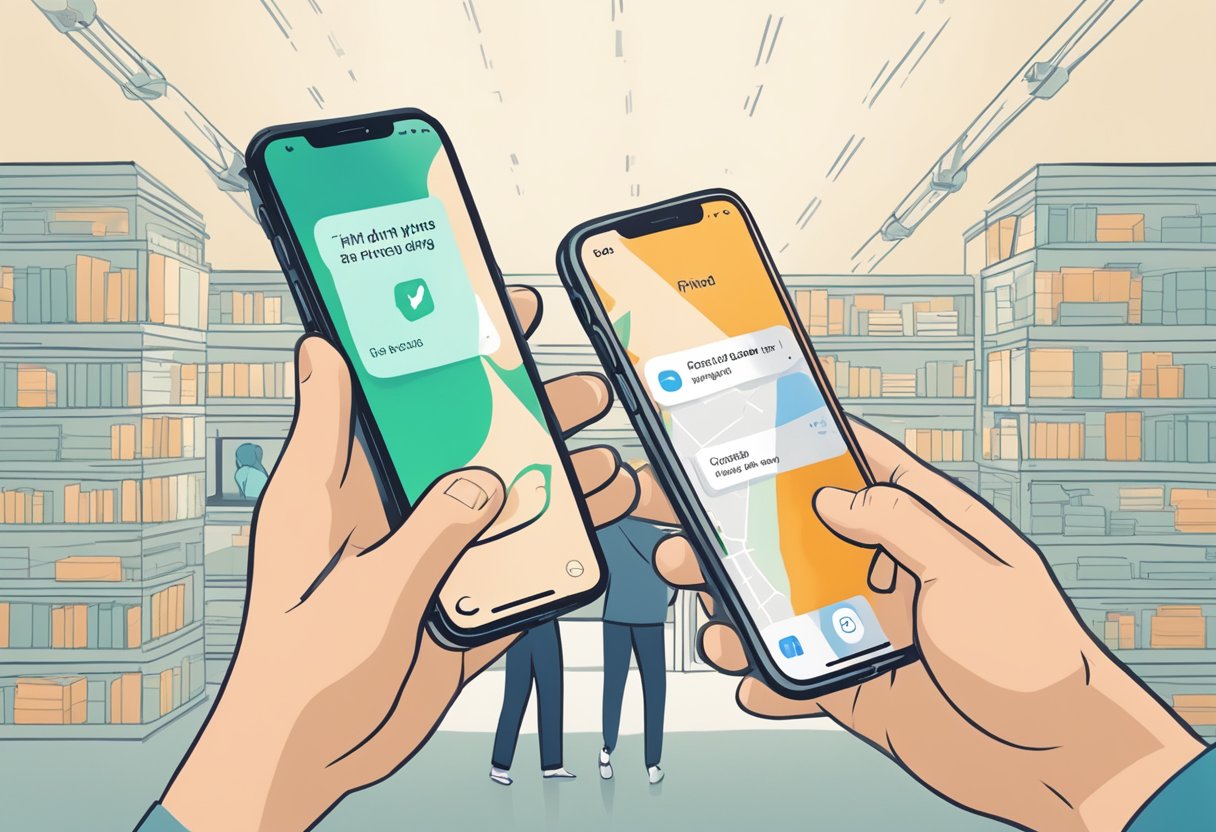
With simple setup steps, anyone can enable "Find My iPhone" on their Apple device. Once activated, friends can request location assistance when they need it. There are various features available, like enabling Lost Mode or playing a sound to help find a missing phone, ensuring that the process is straightforward.
In the case of difficulties, troubleshooting common issues can be done with ease. Understanding how this feature works ensures a smooth experience while keeping privacy intact. Users can confidently share their location, knowing they have options to protect their information.
Key Takeaways
- "Find My iPhone" allows friends to easily locate lost devices.
- Setting up the feature is straightforward and quick.
- Privacy settings ensure users control who can see their location.
Overview of 'Find My iPhone'
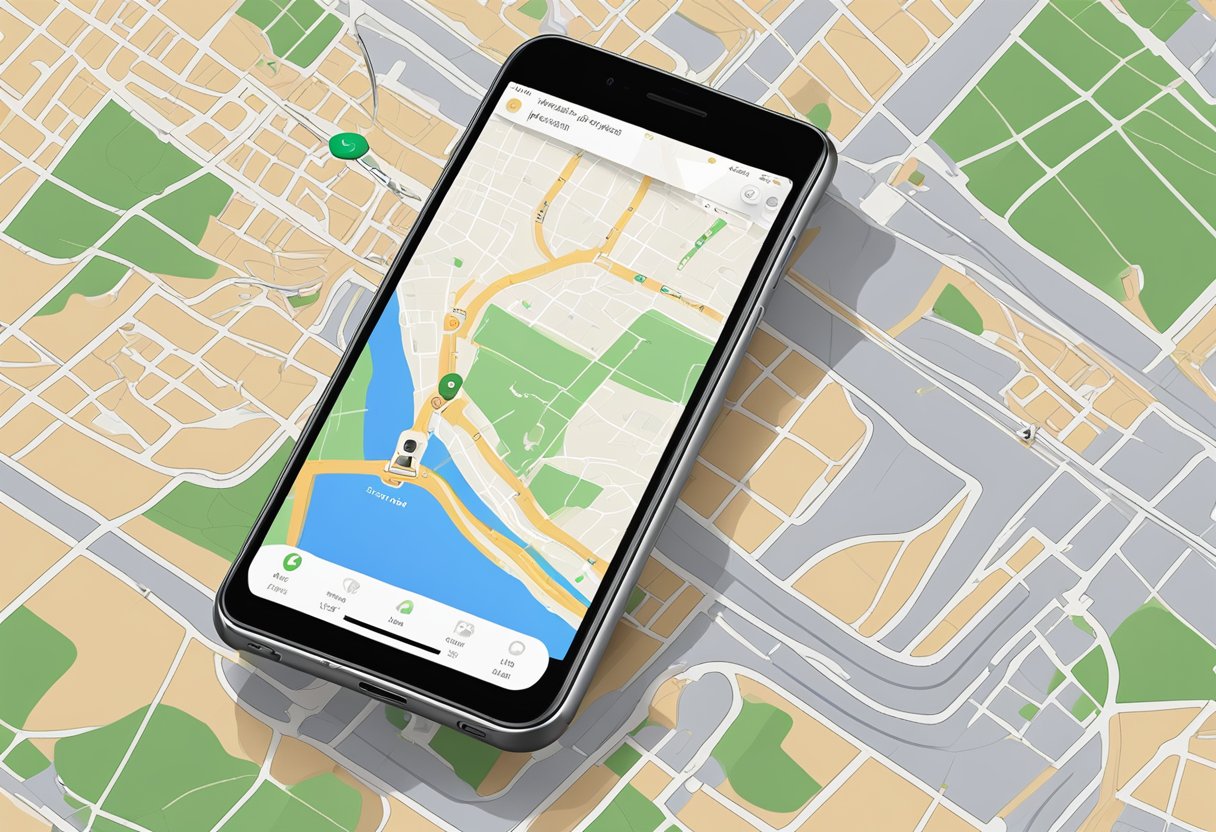
Find My iPhone is a valuable tool for locating lost Apple devices and keeping track of friends or family members. Its purpose is to provide users with a reliable way to find Apple products, while enhancing safety and communication among friends.
Purpose and Functionality
The primary purpose of Find My iPhone is to help users locate their Apple devices, such as iPhones, iPads, and Macs. When a device is lost, users can access the Find My app to display its last known location on a map.
Key features include:
- Locate Friends: Users can see the location of friends who have shared their location.
- Notify When Found: If the device is offline, users can enable notifications when it comes back online.
- Privacy: Location sharing is secure, with users controlling who can see their location.
These features make Find My iPhone an essential tool for those with multiple Apple devices.
Availability and Compatibility
Find My iPhone is available on various devices. It can be accessed through the Find My app on iPhones, iPads, and Macs. Users can also log into iCloud.com to locate devices via a web browser.
Apple devices must use iOS 13 or later for full functionality. It's compatible with:
- iPhone, iPad, iPod touch
- Mac computers
- Apple Watch
- AirPods
This wide range of compatibility ensures that users can track their devices effectively regardless of the specific device they own. It's important to have location services enabled for accurate tracking.
Setting Up 'Find My iPhone'
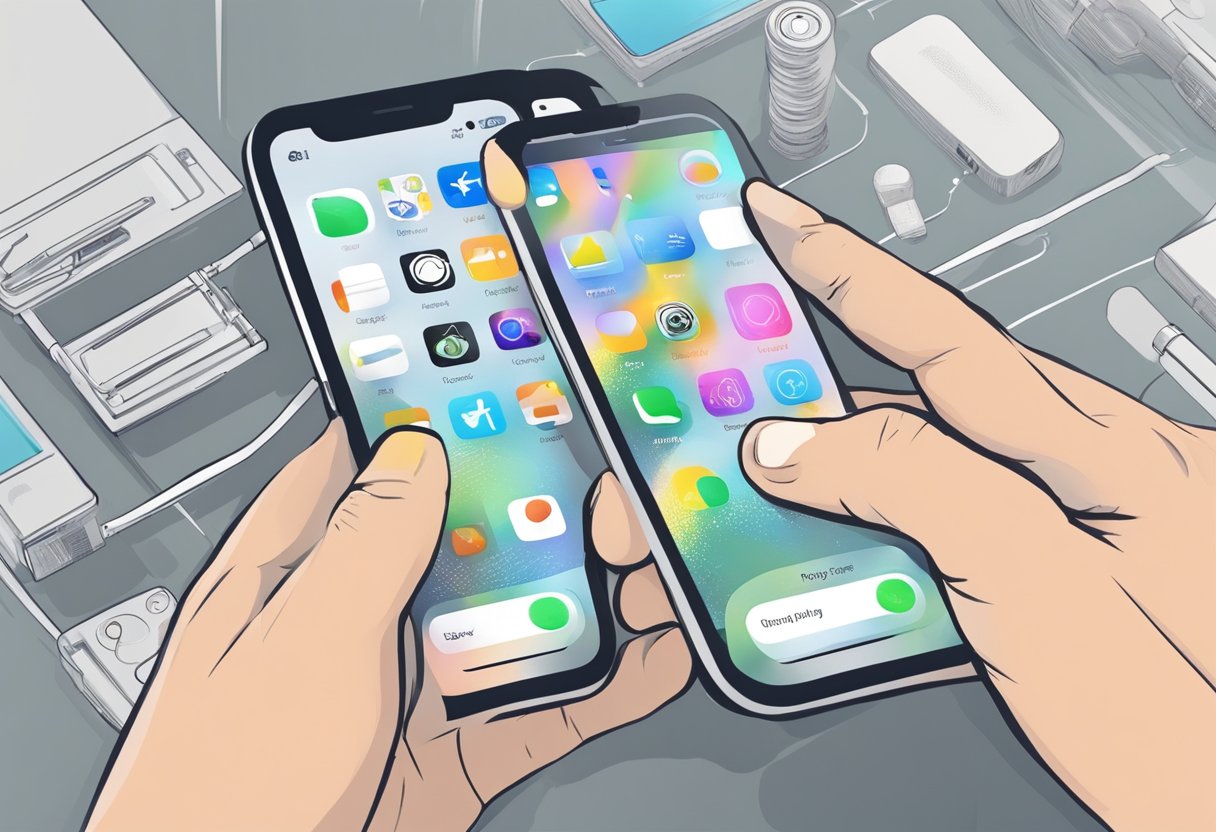
Setting up 'Find My iPhone' is essential for locating a lost device and keeping track of friends’ locations. This section details how to activate the feature and discusses privacy considerations.
Activating 'Find My iPhone'
To activate 'Find My iPhone', the user should follow these steps:
- Open Settings: Tap the Settings app on the device.
- Select Apple ID: At the top of the screen, tap on the user's Apple ID.
- Access iCloud: In the menu, tap on iCloud.
- Find My iPhone: Scroll down and choose 'Find My iPhone'.
- Enable Feature: Toggle the switch to turn it on.
Once activated, the user can also enable "Send Last Location." This feature automatically sends the device’s last known location when the battery is critically low. Taking these steps ensures that 'Find My iPhone' is ready to help, whether it’s needed for tracking friends or finding lost devices.
Privacy Considerations
When using 'Find My iPhone', privacy is crucial. Users should be aware of how location sharing works.
- Share Location: To share their location, they must enable location sharing for their friends.
- Control Access: Users can control who sees their location by tapping on 'People' in the Find My app.
Moreover, if a friend is located, the user is visible to them as well.
It is important to communicate with friends about location sharing. Regularly reviewing shared settings ensures that privacy is maintained while still providing the benefits of the feature.
Using 'Find My iPhone' for a Friend
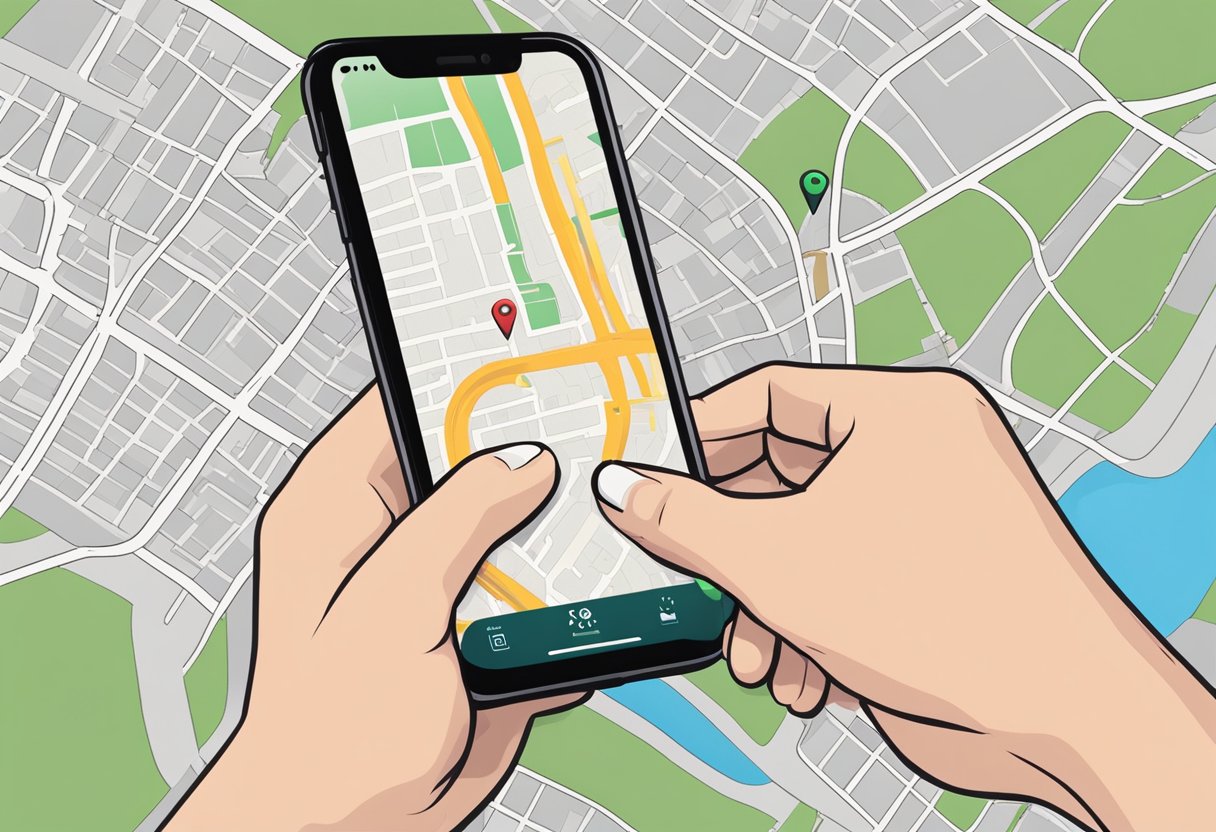
The 'Find My iPhone' feature allows users to help friends locate their lost devices easily. Understanding how to access a friend's device and what actions to perform is essential for effective assistance.
Accessing a Friend's Device
To help locate a friend's lost iPhone, the friend must first enable location sharing. They can do this by going to Settings > Privacy & Security > Location Services > Share My Location. Once sharing is set up, the user can access their friend's device using the Find My app.
They can then open the app and select the People tab. This tab shows a list of friends who are sharing their locations. By selecting the friend's name, the user can view the device's current location on a map.
For this to work, both devices must be logged into Apple accounts. They need to allow location sharing for successful tracking.
Actions to Perform on a Friend's Behalf
Once the friend's device is located, there are several actions to take. If the iPhone is nearby, the user can select Play Sound. This feature will make the phone emit a sound, helping to find it quickly.
If the device is lost and out of reach, activating Lost Mode is beneficial. This option locks the device and displays a message on the screen. The message can include a contact number for anyone who finds the phone.
Additionally, users can erase the device remotely if sensitive information is at risk. This action will protect personal data but should be used only as a last resort, as it will remove all data from the device.
Troubleshooting Common Issues

When using Find My iPhone for someone else, users may encounter issues that can prevent accurate location tracking. Addressing these problems is essential for effective assistance. Below are some common concerns with actionable solutions.
Location Services Problems
If the location services are not functioning, it can be due to various reasons. Firstly, check if Location Services are enabled on the device. This can be done by going to Settings > Privacy > Location Services. Ensure it is turned on for the Find My app.
Additionally, make sure that the device the friend is using also has a cellular or Wi-Fi connection. Without internet access, the device will not be able to report its location.
It’s also important to verify that Share My Location is turned on in the Find My app. This option allows friends to share their location with each other, which is crucial for locating the device.
Device Offline or Not Reporting Location
When a device appears offline, users should first check the connection status. A device may go offline if it is out of battery or turned off. In such cases, it can't be located.
If the device is online but not reporting its location, restarting the device might help. Sometimes, a simple reboot can fix minor glitches preventing location updates.
Make sure that the device has the latest software update, as updates can fix bugs affecting location services. Users can check for updates by going to Settings > General > Software Update. Keeping the device up-to-date enhances performance and reliability in using location features.
Privacy and Security
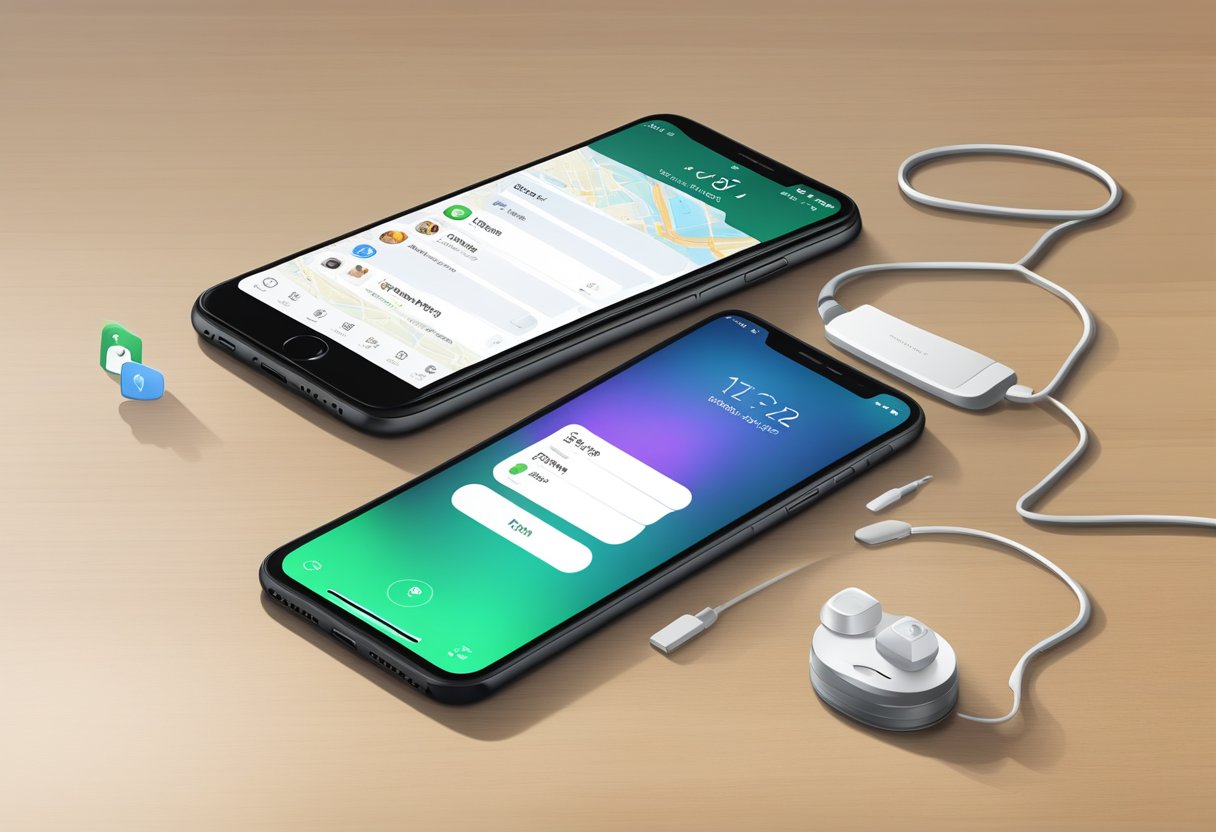
When using Find My iPhone for a friend, understanding privacy and security is crucial. Users must be aware of how permissions work and the importance of managing access to location data.
User Authorization and Permissions
To use Find My iPhone, it is essential for users to authorize access. When a friend wants to locate someone else’s device, they need explicit permission. This starts with the device owner sharing their location.
Location sharing must be enabled in the settings. A user can grant access by going to the Find My app and choosing to share their location. The device owner should only share their location with trusted individuals to protect privacy. It’s also important to ensure that friends view their location and not access private data.
Limiting Access and Revoking Permissions
Managing permissions is key to maintaining user privacy. If a user feels uncomfortable sharing their location with someone, they can easily revoke access. This prevents the other person from seeing their whereabouts.
To limit access, a user should navigate to their Find My settings. From there, they can adjust who can see their location. Regularly reviewing and updating these permissions is good practice. Users should only share their location with friends they trust completely to avoid any privacy breaches.
Alternatives to 'Find My iPhone'
There are several alternatives available for tracking devices apart from Find My iPhone. These options include third-party applications and solutions offered by network carriers. Each alternative comes with unique features and benefits, making them worth considering.
Third-Party Tracking Applications
Many third-party tracking apps provide additional features for locating lost or stolen devices. Some popular options include:
-
Prey: This app offers device tracking, remote locking, and data wiping. It is user-friendly and supports multiple platforms, including Android and Windows.
-
Life360: This app focuses on family safety. It allows families to share their locations and send alerts in case of emergencies.
-
Glympse: This app allows users to share their location temporarily. It is particularly useful for coordinating meetups or checking in with friends.
These apps often have specific functions that may cater to diverse user needs, making them practical choices in scenarios where Find My iPhone may not suffice.
Network Carrier Solutions
Many mobile network carriers now provide tracking services as part of their offerings. These are especially useful for users who prefer integrated solutions. Some notable services include:
-
Verizon Family Locator: This service helps locate family members and can send alerts when they arrive at or leave specific locations.
-
AT&T Smart Family: Similar to Verizon, this service allows users to see their family members' locations, set up safe zones, and manage screen time.
These carrier solutions typically require subscriptions and integrate well with existing mobile plans. They can serve as reliable options for users looking to keep track of their loved ones or devices without using Find My iPhone.
Frequently Asked Questions

This section addresses common inquiries related to locating a friend's iPhone using the Find My iPhone feature. The answers provide clear steps and information needed for effective use.
How can I locate a friend's iPhone using Find My iPhone?
To locate a friend's iPhone, open the Find My app on your device. Tap on "People" at the bottom. Select the name of the person you want to find. If their device is locatable, it will show their location on the map.
What steps are required to use Find My Friends to find someone's location?
First, open the Find My app and tap on the "People" tab. Then, tap the "Add" button and select "Share My Location." Enter the friend's name or phone number and choose how long you want to share your location.
Is it possible to track an iPhone with a phone number using iCloud services?
Tracking an iPhone by phone number alone is not possible with iCloud services. The Find My iPhone feature requires access to the Apple ID linked to the device. The location can only be seen if permission is granted.
Can I help a friend access their Find My iPhone feature remotely?
Yes, a person can assist a friend in accessing Find My iPhone. They need to launch the Find My app, select "Me," and then tap on "Help a Friend." This opens iCloud.com, where the friend can sign in to their account.
How does one use Find My iPhone if they don't own an iPhone themselves?
A person without an iPhone can still use the Find My iPhone feature through a web browser. They can visit iCloud.com and sign in using their Apple ID. This allows them to access Find My iPhone and locate devices.
Are there any ways to access Find My iPhone features for free?
Yes, the Find My iPhone feature is free to use. It’s built into Apple devices without any extra charges. Anyone with a valid Apple ID can access these features at no cost.