
iCloud Find My iPhone: A Complete Guide to Locating Your Device
iCloud Find My iPhone: A Complete Guide to Locating Your Device
Losing a phone can be stressful, but with the right tools, recovery becomes easier. iCloud's Find My iPhone feature allows users to locate their lost devices quickly and effectively, making it an essential tool for anyone with an Apple device. By activating this feature, users can track their iPhone's location, play a sound to help find it, or even lock it remotely to secure their information.
In today’s digital age, being able to find a lost device can save time and avoid potential headaches. Many users appreciate the peace of mind that comes with knowing they can monitor their devices and keep them safe. With straightforward steps and helpful features, utilizing Find My iPhone can transform a frustrating situation into a manageable one.
Key Takeaways
- Find My iPhone is key for tracking lost Apple devices.
- Users can activate features to secure their information remotely.
- Understanding how to use this tool is essential for device safety.
Overview of 'Find My iPhone'

'Find My iPhone' is a vital feature of Apple's iCloud service. It helps users locate lost or stolen devices easily. The following details cover its core features, system requirements, and the account setup needed for iCloud.
Core Features
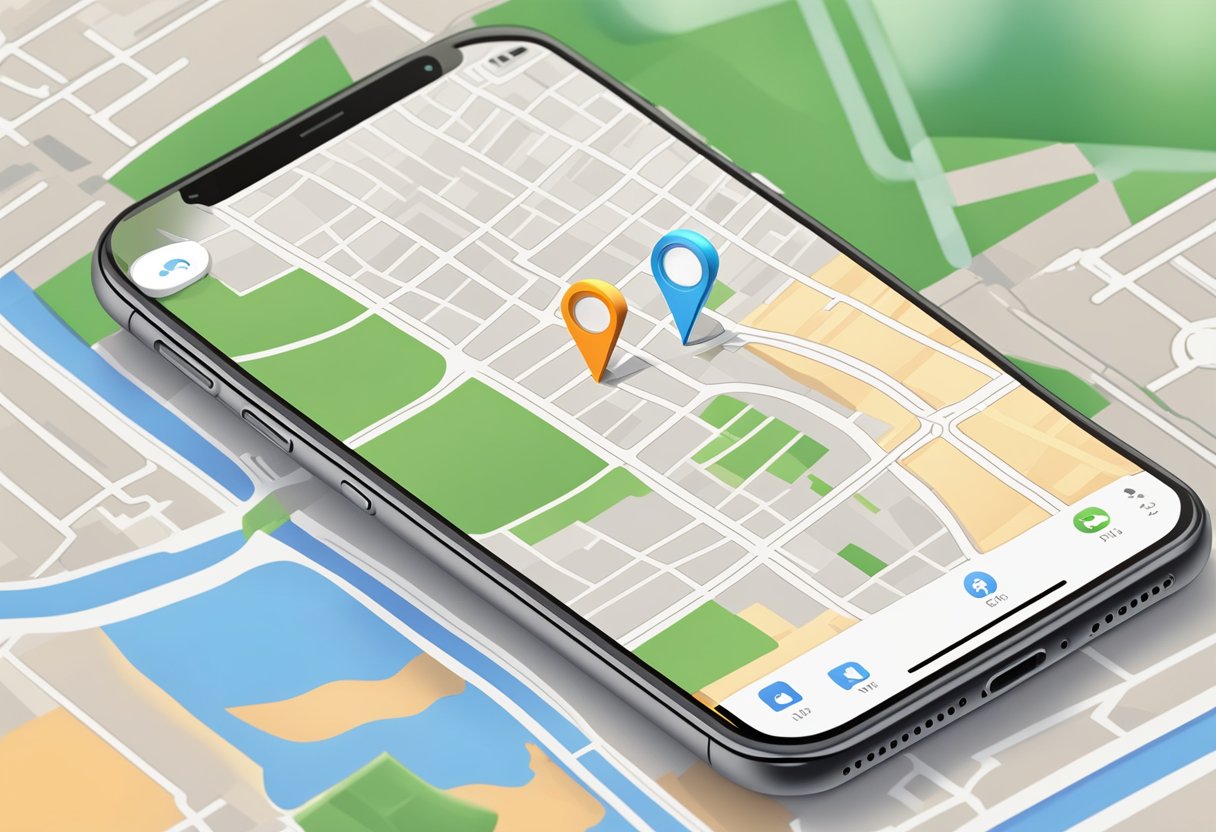
The primary function of 'Find My iPhone' is to locate Apple devices, including iPhones, iPads, and Macs. Users can view their device's location on a map. If the device is nearby, they can play a sound to help find it.
Another important feature is Lost Mode, which locks the device and displays a custom message. This mode helps protect personal information and increases the chances of recovery. Users can also remotely erase their device to prevent unauthorized access.
Additionally, the service supports AirTags, allowing users to track items like keys or bags. Privacy is prioritized, ensuring that users' locations remain confidential throughout the tracking process.
System Requirements
To use 'Find My iPhone', devices must meet certain system requirements. Users need an iPhone, iPad, iPod touch, or Mac with the latest software updates installed.
On iOS devices, 'Find My' must be enabled in the settings. For Macs, it requires macOS Catalina or later. Users can access the feature through the Find My app or via iCloud.com.
Having an active internet connection is essential, as the service relies on Apple’s servers to function. A stable Wi-Fi or cellular connection helps ensure accurate location tracking and better performance.
Account Set-Up for iCloud
Setting up an iCloud account is necessary for using 'Find My iPhone'. This process begins by creating an Apple ID, which serves as the account for all Apple services.
After creating the Apple ID, users must enable 'Find My iPhone' in the device settings. This can be done by navigating to Settings > [Your Name] > iCloud > Find My iPhone.
Users also have the option to enable Share My Location to share their device's location with family and friends. This feature enhances safety by allowing trusted contacts to help locate lost devices.
Activating 'Find My iPhone'
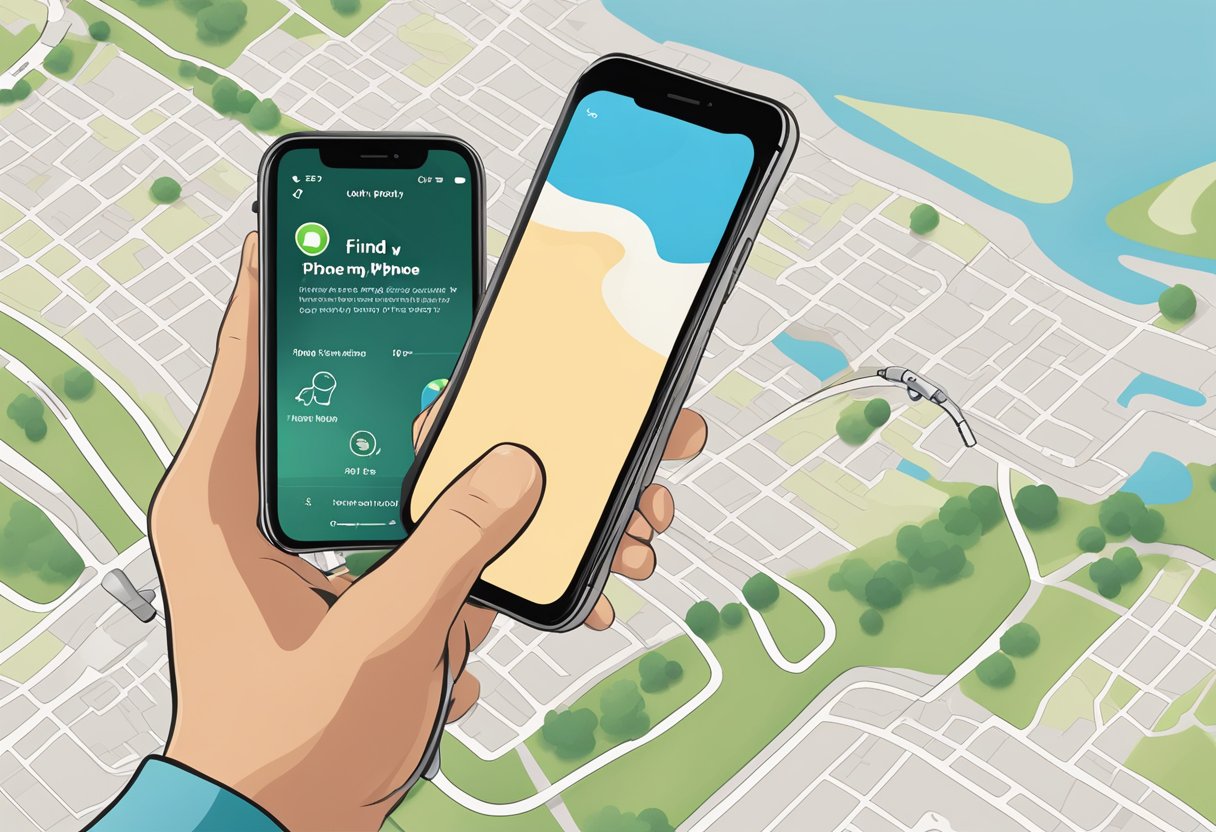
Activating Find My iPhone is crucial for tracking and securing Apple devices. It allows users to locate their devices if lost or stolen. The process varies slightly between iOS and macOS, but both are simple and straightforward.
Enabling on iOS Devices
To activate Find My iPhone on an iOS device, users should first open the Settings app. They should tap on their name at the top of the screen to access Apple ID settings.
Next, they should select iCloud and scroll down to find the Find My iPhone option. By tapping it, users can turn it on. It is recommended to also enable Send Last Location, which automatically sends the device's location when the battery is critically low.
This feature enhances the chances of recovering a lost device. Users may also need to enter their Apple ID password to confirm changes.
Enabling on macOS Devices
For Mac users, activating Find My Mac follows a similar path. They should click the Apple menu and select System Settings. After this, they should click on their name, followed by iCloud.
Users will need to locate the Find My Mac option. By clicking on it, they can enable the feature. It is essential to check both the Find My Mac and Find My network options to ensure full tracking capabilities.
Once activated, Mac users can locate their devices through the Find My app on another device or through the iCloud website. This ensures users can track their Mac effectively if misplaced.
Using 'Find My iPhone'
'Find My iPhone' helps users locate lost devices quickly and easily. This section covers how to access the feature via the web and the app, providing essential steps for each method.
Accessing via Web
To use 'Find My iPhone' through the web, users need to visit iCloud.com. Once there, they should sign in with their Apple ID. After logging in, they will see various options.
- Click on Find iPhone.
- Wait for the map to load, showing the locations of all devices connected to the account.
- Select the device from the dropdown menu at the top.
If the device is nearby, users can choose to Play Sound. This will help them find it if it's hidden. If the device is lost, they can use Lost Mode. This feature locks the device and allows users to display a message or phone number on the screen.
Using the App
Using the 'Find My' app is straightforward. Users should open the app on their iPhone, iPad, or Mac.
- Launch the app and sign in if necessary.
- Tap on Devices at the bottom to see a list of all devices linked to the account.
From here, users can select a device to view its location on the map. They have options to Play Sound, Mark As Lost, or even Erase Device if they are sure it won't be recovered. It's important to keep the Find My feature enabled on devices for better tracking. By doing this, users can find not just their iPhone but also other Apple devices like iPads and AirPods.
This simple app allows users to keep track of their belongings effectively.
Features in Action

The "Find My iPhone" feature includes several tools designed to help users track their devices efficiently. These features make it simple to find a lost iPhone, secure it, or erase its data if needed.
Locating Your iPhone
To locate an iPhone, users can access the Find My app on any Apple device or visit the iCloud website. Upon logging in with their Apple ID, they can see a map displaying the location of their device. If the iPhone is nearby, the app will show the last known location, which helps in retrieving it quickly.
In addition, if the device is offline, the app will display the last known location for up to 24 hours. This feature is especially useful in crowded places or during travel. Users can also share their location with friends and family, which can provide extra support if needed.
Playing a Sound on Your iPhone
When an iPhone is misplaced nearby, users can activate a sound alert through the Find My app. This feature helps them find their device without searching everywhere.
To do this, they simply select the device from the list and tap the "Play Sound" option. The iPhone will emit a loud chime, making it easier for users to locate it. Even if the phone is on silent mode, this feature overrides it, ensuring the user hears the sound.
This tool is effective in finding the device quickly, especially if it is hidden under a couch cushion or left in a nearby room.
Lost Mode
Lost Mode is a vital feature for users who have lost their iPhone. It locks the device remotely, preventing unauthorized access. To activate Lost Mode, users select their device in the Find My app and enable the option.
Once activated, they can customize a message that will appear on the iPhone's lock screen. This message can include contact information for someone who finds the device.
Additionally, Lost Mode will track the device's location as it moves. This feature allows users to receive updates on where their iPhone is located, helping them reclaim it successfully.
Erase iPhone Remotely
If an iPhone is permanently lost or stolen, users have the option to erase it remotely. This ensures that personal data remains secure. To do this, they need to go into the Find My app and choose the device they wish to erase.
Selecting the "Erase iPhone" option will delete all information from the device. Users should only do this if they have no hope of recovering the device, as it usually cannot be tracked afterward.
This feature adds a layer of security for sensitive information, particularly for users who often carry confidential data on their devices.
Privacy and Security
iCloud's Find My iPhone feature prioritizes user privacy and security. It uses advanced technologies to protect personal information and ensure that only the device owner can access it.
Data Protection
Find My iPhone employs strong encryption to protect the user's data. The app does not share location information with others unless the user chooses to do so. When a device is marked as lost, it goes into Lost Mode, which locks the device and displays a custom message. This helps safeguard personal information.
User privacy is maintained throughout the process. Apple does not collect location data unless Find My iPhone is activated. Therefore, the feature only works when the service is actively used, ensuring that users have control over their data.
Two-Factor Authentication
Two-Factor Authentication (2FA) adds an extra layer of security to iCloud accounts. When enabled, 2FA requires not only the user's password but also a verification code sent to another trusted device. This prevents unauthorized access even if someone else knows the password.
Setting up 2FA is straightforward. Users need to go to their Apple ID settings and enable it. After activation, users will receive a code on their trusted devices whenever they log in. This helps ensure that accounts remain secure against potential threats and unauthorized users.
Troubleshooting 'Find My iPhone'
When users encounter issues with Find My iPhone, several common problems may arise. These problems often involve connectivity, location accuracy, and the device not being found. Each issue can be resolved with specific steps.
Connectivity Issues
Connectivity is crucial for Find My iPhone to work effectively. Users should first ensure their device is connected to Wi-Fi or has mobile data enabled. This can be checked in the Settings app under Wi-Fi or Cellular Data.
If the connection is unstable, it may affect the app's performance. Turning on Airplane mode for a few seconds and then turning it off can reset the connection.
Additionally, users should verify that the location services are enabled. To do this, navigate to Settings > Privacy > Location Services and ensure it’s turned on and that Find My iPhone is set to "While Using the App."
Location Accuracy
Location accuracy is essential for finding a device. If the location appears inaccurate, users should check their device's Date and Time settings. Go to Settings > General > Date & Time and ensure "Set Automatically" is enabled.
Another factor affecting accuracy can be the surroundings. Tall buildings, dense trees, and other structures can block GPS signals. Moving to a more open area often helps.
Also, if the iPhone is in a low battery state, location services may not function correctly. Ensuring the device has enough battery can improve performance.
Device Not Found
If Find My iPhone states “Device Not Found,” the device may be turned off or out of battery. In this case, users should try to locate the device later.
Another possibility is that the device is not signed in to the same Apple ID. Users can confirm this under Settings by checking the Apple ID used on all devices.
If the device is offline, it can still show the last known location. Users should regularly check the app for updates. If the problem persists, resetting network settings by going to Settings > General > Reset > Reset Network Settings may be necessary.
Additional Tips and Tricks
To get the most out of the Find My iPhone feature, users can follow these helpful tips.
-
Enable Location Services
Make sure that Location Services are on. Go to Settings > Privacy > Location Services and switch it on. -
Set Up Family Sharing
Users can add family members to their Find My app. This allows them to help locate each other’s devices easily. -
Use Lost Mode
If a device is lost, activate Lost Mode through the Find My app. This locks the device and shows a custom message with contact information. -
Regularly Update Devices
Keep all devices updated. Regular updates ensure that the Find My feature works with the latest improvements and security patches. -
Familiarize with the Map
Spend time exploring how the map works in the Find My app. Understanding the symbols and features can make locating devices quicker. -
Check Battery Levels
A device must have battery life to be tracked. Ensure that devices are charged, so they can communicate with the Find My app.
Following these tips can enhance the experience and effectiveness of using Find My iPhone, ensuring devices can be located when needed.
Frequently Asked Questions
This section addresses common queries about using the Find My iPhone feature. It provides clear steps for accessing the service, locating devices, and managing settings effectively.
How can I access Find My iPhone from another device?
To access Find My iPhone from another device, one can use a web browser or the Find My app on another Apple device. Signing in with the Apple ID linked to the lost device is essential to gain access to the device's location and features.
What are the steps to locate my iPhone if it's lost or stolen?
To locate a lost or stolen iPhone, the user should open the Find My app or visit iCloud.com. After signing in, they can select the device and view its location on the map. Options like playing a sound and enabling Lost Mode are also available from this interface.
How can I track the location of my iPhone using iCloud?
Tracking an iPhone via iCloud involves logging into iCloud.com. Users should click on the Find My iPhone option. This will show all devices linked to the Apple ID, allowing users to select their iPhone and view its real-time location on the map.
Is it possible to turn off Find My iPhone remotely through iCloud?
Find My iPhone cannot be disabled remotely through iCloud. Users must manually turn it off from the device settings. This precaution helps protect the device from unauthorized access and ensures it remains traceable.
Can I find the last known location of my iPhone if it goes offline?
Yes, users can view the last known location of their iPhone if it goes offline. When the device loses connectivity, Find My iPhone will display its last reported location on the map. This can help find the device even if it's out of battery.
How do I use the Find My app on another Apple device to locate my iPhone?
Using the Find My app on another Apple device is straightforward. Users should open the app and sign in with their Apple ID. They can then select their lost iPhone from the list of devices to view its location and manage options like Lost Mode or playing a sound.